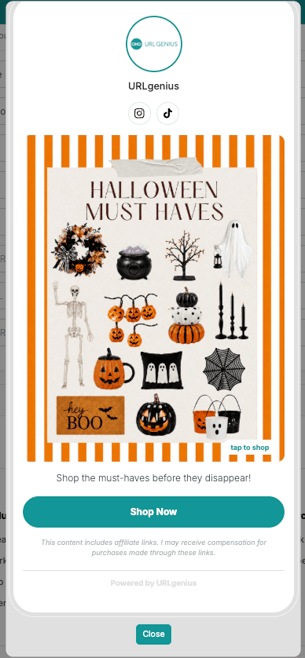
Campaign Pages are customizable landing pages where your audience can explore and shop your recommended products — each page gets its own shareable link. Here's how to create one.
To get there: hover over My Account in the top right, then select Campaign Pages from the dropdown menu.
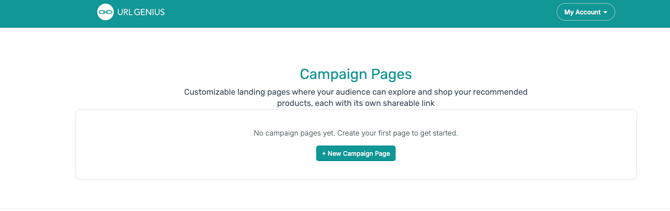
If you don't have any pages yet, you'll see a prompt to create your first one. Click + New Campaign Page to get started.
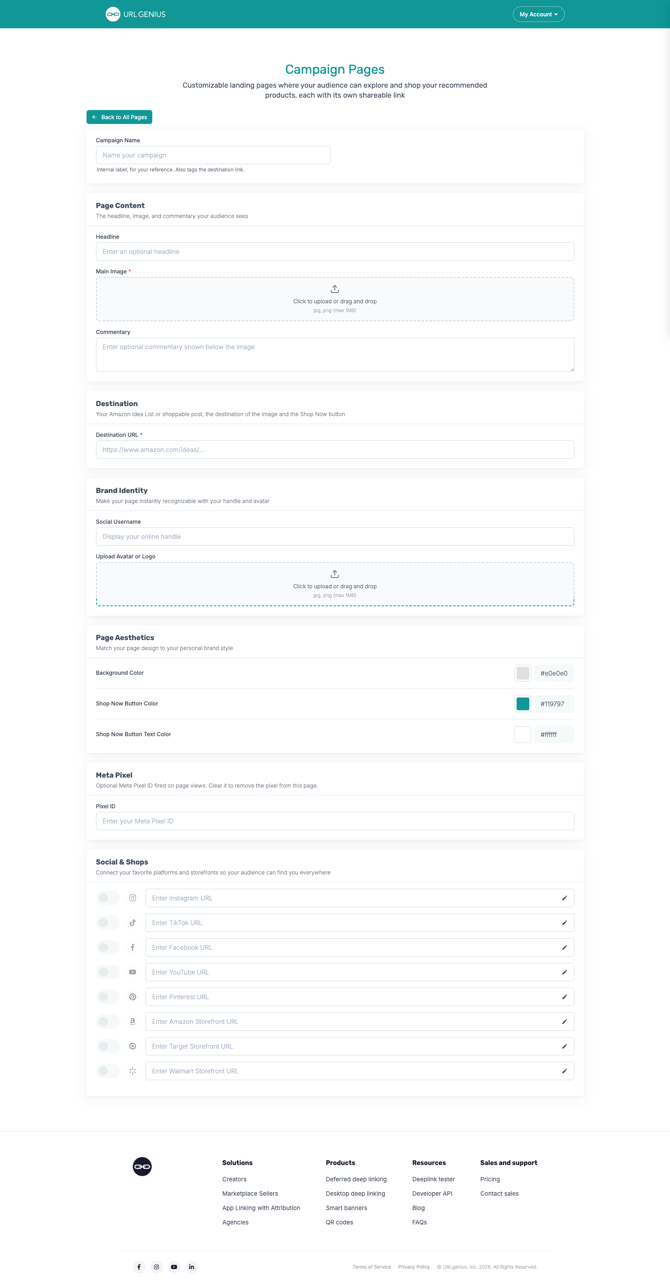
Tip: when you create a new page, several fields automatically prefill from your account's existing brand assets — your avatar, handle, Meta Pixel ID, social/storefront links, and default colors. This saves setup time, but only fills in fields that are currently blank, so anything you've customized elsewhere won't get overwritten. Note that any social/shop links that prefill this way start toggled off — nothing becomes a live button on the page until you switch it on.
Campaign Name
Give your campaign a name. This is an internal label for your own reference, and it also tags the destination link — it isn't shown to your audience.
Page Content
This section controls what your audience actually sees on the page:
- Headline — an optional headline displayed at the top of the page.
- Main Image (required) — the primary image for your page. Upload a JPG or PNG, up to 1MB.
- Commentary — optional text shown below the image, useful for adding context or a personal note about what you're recommending.
- Destination URL (required) — where the page sends people when they click the image or the Shop Now button. This is typically your Amazon Idea List or a shoppable post link.
Brand Identity
Make the page instantly recognizable as yours:
- Social Username — displays your handle on the page.
- Upload Avatar or Logo — upload a JPG or PNG, up to 1MB.
Page Aesthetics
Match the page to your personal brand style:
- Background Color — sets the page's background color (hex code).
- Shop Now Button Color — sets the color of the Shop Now button.
- Shop Now Button Text Color — sets the text color on the Shop Now button.
Each color field shows a live color swatch alongside its hex code, so you can enter a specific hex value or use the swatch picker.
Meta Pixel- Pixel ID — optional. If you use Meta Pixel for tracking, enter your Pixel ID here and it will fire on page views. Clear this field to remove the pixel from the page.
Social & Shops
Connect your platforms and storefronts so your audience can find you everywhere. You can add a URL for:
- TikTok
- YouTube
- Amazon Storefront
- Target Storefront
- Walmart Storefront
Each one has a toggle to turn it on or off, and an edit icon to add or update the URL — so you can add a link now and toggle it on later, or temporarily hide one without deleting it.
"Incomplete" pages
A page will show as Incomplete in your list until it has both:
- A Destination URL, and
- A Main Image
Everything else — name, headline, commentary, avatar, handle, pixel, and social/shop links — is optional. Once both required fields are set, your page is ready to share.
Duplicating a page
If you want to reuse a page's setup for a new product or promotion, use Duplicate on any page in your list instead of building a new one from scratch. Here's what carries over and what resets:
Carries over: main image, avatar, handle, headline, commentary, colors, Meta Pixel ID, and all social/shop links (along with their on/off toggles).
Resets: the destination URL (left blank so you can point the copy at something new), the page's own link (a fresh, unique link is generated), and the name (becomes "(original name) Copy," or stays blank if the original had no name). The duplicate also always starts active, regardless of the original's status.
Affiliate disclaimer
Every Campaign Page automatically includes an affiliate disclaimer — this isn't editable, so you don't need to add your own.