
The URLgenius Plugin for ChatGPT makes managing your links easier than ever. Instead of switching between platforms, you can use ChatGPT to create new deep links, find existing links, view link details, and update destinations or tags—all without leaving your conversation.
Whether you're an affiliate marketer, content creator, or brand managing multiple campaigns, the URLgenius Plugin helps streamline your workflow using AI.
What Can the URLgenius Plugin Do?Once connected to your URLgenius account, you can use ChatGPT to perform four actions support: (Analytic Support coming soon!)
|
Action |
Description |
|
Create |
Generate a new URLgenius deep link from a destination URL. |
|
List |
Find and organize links from your URLgenius account. |
|
Get |
Retrieve information about a specific link. |
|
Update |
Change the destination URL or tags on an existing link. |
URLgenius automatically handles supported platform routing when creating links, helping direct customers into the appropriate app experience.
Step 1: Install the URLgenius Plugin in ChatGPT- Open ChatGPT and sign in to your account.
- Select Plugins in the ChatGPT sidebar.
- Search for URLgenius in the Plugin Directory.
- Select the URLgenius Plugin and click Install Plugin.
- When prompted, click Connect to connect your URLgenius account.
- Sign in with your URLgenius credentials and authorize the connection.
- Return to ChatGPT once the connection is complete.
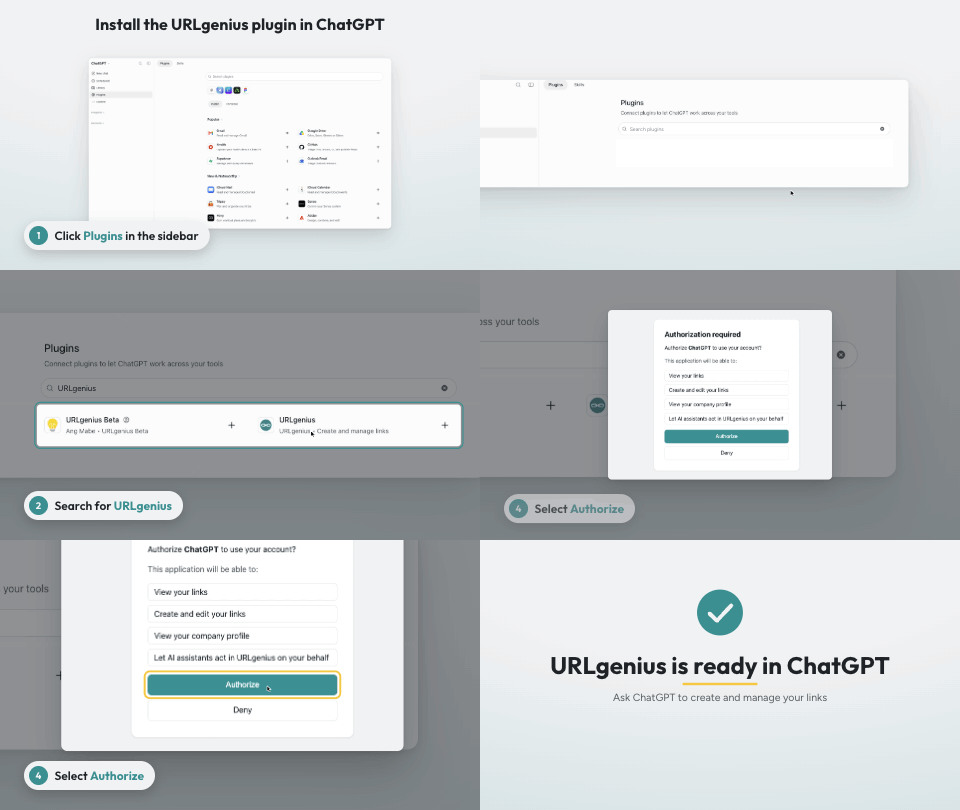
Note: Plugin availability may depend on your ChatGPT plan, workspace settings, and account permissions. You must have access to a URLgenius account to use its link management features. You can manage or disconnect the plugin at any time from the URLgenius plugin page in ChatGPT.
Step 2: Start Using URLgenius in ChatGPTOnce installed and connected, you can start a new ChatGPT conversation and ask ChatGPT to work with your URLgenius account.
To explicitly select the plugin, type @URLgenius in your conversation and choose the plugin when it appears.
For example:
@URLgenius Show me my most recently updated links.
ChatGPT will use the connected URLgenius account to retrieve the requested information.
You can also use the plugin by selecting it from the available plugins in the ChatGPT composer, or by clicking Try in chat on the URLgenius plugin page.
Step 3: Create a URLgenius Deep LinkCreating a link is as simple as pasting the destination URL into your ChatGPT conversation.
Example: Create an Amazon Deep Link
Copy and paste this prompt into ChatGPT:
Create a URLgenius deep link for https://link.amazon/B06ceHYYl and add the tag blackfriday.
ChatGPT will send the URL to URLgenius, which processes the destination and generates a deep link using its supported routing capabilities.
Example URLgenius Link
https://urlgeni.us/link-amazon/HXcEGh
This is an existing link generated in the connected example account using the Amazon destination above.
Link details:
- Original destination: https://link.amazon/B06ceHYYl
- URLgenius link: https://urlgeni.us/link-amazon/HXcEGh
- Tag: blackfriday
The generated link can be copied and shared in your marketing campaigns, social media posts, emails, and other supported channels. Each request creates a new link, even if one already exists for the same destination, so ask ChatGPT to check for an existing link first if you are unsure. For App Store or Google Play URLs, include the custom path you want; all other links get an automatically generated path.
Create Amazon Attribution Links Using ChatGPT
For brands, Amazon sellers, and agencies running off-Amazon campaigns, URLgenius helps drive customers directly into the Amazon app while supporting Amazon Attribution measurement.
Amazon Attribution enables eligible advertisers to measure how their non-Amazon marketing efforts contribute to product engagement and sales on Amazon.
By combining Amazon Attribution URLs with URLgenius deep linking, advertisers can create a more seamless shopping experience while maintaining the measurement information associated with their campaigns.
How to Create an Amazon Attribution Deep Link
1. Get your Amazon Attribution URL
If you already have an Amazon Attribution link from the Amazon Ads console, copy the complete URL, including its attribution parameters.
2. Open ChatGPT
Make sure the URLgenius Plugin is connected to your account.
3. Ask ChatGPT to create the link
Use this prompt:
@URLgenius Create a deep link using my Amazon Attribution URL: [paste complete Amazon Attribution URL]. Preserve all existing attribution parameters and add the URLgenius tag meta-campaign.
4. Copy your new URLgenius link
ChatGPT will return the created URLgenius link. URLgenius processes the destination and builds its supported app routing.
5. Verify your attribution parameters
Before launching your campaign, confirm that the Amazon Attribution measurement parameters are present in the final routing destination and test the generated URL.
6. Add the URLgenius link to your campaign
Use the new link in your supported social media campaigns, ads, and other off-Amazon marketing channels.
Additional Prompts for Creating Links
Amazon affiliate marketing
Create a URLgenius link for this Amazon product: [paste URL]. Preserve my existing affiliate tracking parameters and add the tag holiday2026.
TikTok
Create a URLgenius deep link for this TikTok profile: [paste URL].
Create a URLgenius link for this Instagram post: [paste URL] and tag it instagram-campaign.
Multiple campaigns
Create a URLgenius link for [paste URL] and add the tags holiday, social, and november.
Tip: If you're creating Amazon affiliate links, make sure your original destination URL includes the correct affiliate tracking information when required. URLgenius passes through supported destination parameters but does not invent affiliate IDs. Shortened URLs (such as amzn.to) are resolved automatically, so the final destination may look different from the URL you pasted.
Step 4: Find Existing Links in Your Account (List)Need to find a link you've already created? Ask ChatGPT to search your connected URLgenius account.
You can retrieve existing links without opening your URLgenius dashboard.
Suggested Prompts
Find recently updated links
Show me my 10 most recently updated URLgenius links.
Find Amazon links
List my URLgenius links that contain amazon in the destination URL.
Find links by campaign tag
Find all my URLgenius links tagged blackfriday.
Find links by platform
Show me the URLgenius links in my account that contain TikTok URLs.
Find links updated since a date
List my URLgenius links updated since November 1, 2026.
Find a specific product link
Search my URLgenius account for links containing B06ceHYYl.
ChatGPT can display matching links and their available details so you can quickly identify the link you need.
Tip: List supports filtering by destination URL, link path, tags, and last-updated date. Date filters are based on updates rather than the original link creation date. Tag searches match partial tags (for example, blackfriday also matches blackfriday2025), and results come back up to 40 links at a time, so ask for more if needed.
Step 5: View Details About an Existing Link (Get)The Get action allows you to retrieve information about a specific URLgenius link.
This is useful when you want to confirm a link's destination, tags, or routing configuration.
Example Prompt
@URLgenius Get the details for link ID [link ID].
ChatGPT can retrieve information including:
- URLgenius link URL
- Destination URL
- Associated tags
- Available routing information
You can also ask ChatGPT to locate a link first and then retrieve its details.
Additional Suggested Prompts
Find my URLgenius link for https://link.amazon/B06ceHYYl and show its destination and tags.
Get the URLgenius link details for ID [link ID].
Check which destination URL is configured for link ID [link ID].
Step 6: Update an Existing URLgenius LinkNeed to change a destination or organize your links with different campaign tags?
The Update action allows you to modify an existing URLgenius link directly through ChatGPT.
Example: Update Campaign Tags
Update URLgenius link ID [link ID] and set its tags to blackfriday and holiday2026.
Example: Change a Link Destination
Update URLgenius link ID [link ID] to point to https://example.com/new-product.
Example: Remove Tags
Remove all tags from URLgenius link ID [link ID].
Example: Find and Update
Find my URLgenius link for [original destination URL] and update its tags to include holiday2026. Preserve all existing tags.
Important: When updating tags, the provided tag list replaces the existing list. To preserve existing tags, ask ChatGPT to retrieve them first and include them in the update.
Updates can modify the destination URL and/or tags while keeping the existing URLgenius link.
Step 7: Use Follow-Up Prompts to Manage CampaignsOne of the benefits of using URLgenius inside ChatGPT is the ability to continue managing links in the same conversation.
For example, you can ask:
Find all my URLgenius links tagged blackfriday.
Then follow up with:
Show me the destination URLs for those links.
Or:
Find the link for this Amazon product and show me its tags.
Followed by:
Add the tag holiday2026 while keeping the existing tags.
ChatGPT can use the context of the conversation to help complete related actions without requiring you to start over.
Recommended URLgenius PromptsHere are additional prompts you can copy into ChatGPT.
|
Goal |
Suggested prompt |
|
Create a new link |
Create a URLgenius deep link for [URL]. |
|
Add campaign tags |
Create a link for [URL] and tag it summer-sale. |
|
Find recent links |
Show my 20 most recently updated URLgenius links. |
|
Find a specific URL |
Find links that contain [URL or keyword] in the destination. |
|
Search by tag |
List my URLgenius links tagged influencer. |
|
Inspect a link |
Get the details for URLgenius link ID [ID]. |
|
Update a destination |
Change the destination of link ID [ID] to [new URL]. |
|
Update campaign tags |
Update link ID [ID] with these tags: holiday, social, paid. |
|
Review tags |
Show the current tags associated with link ID [ID]. |
|
Verify a change |
Retrieve link ID [ID] and confirm its destination and tags. |
Do I need a URLgenius account?
Yes. You need access to a URLgenius account and must connect it to ChatGPT to manage your links.
Does the plugin automatically create deep links?
Yes. When you provide a destination URL, URLgenius processes it and generates a new link using its supported routing functionality.
Can I use Amazon affiliate links?
Yes. You can submit Amazon product URLs, including supported shortened URLs and links with existing affiliate tracking parameters.
Ensure that any required affiliate tracking information is included in the URL you provide.
Can I create links for other platforms?
Yes. URLgenius supports creating links for multiple destinations, including Amazon, TikTok, Instagram, Spotify, Walmart, and other supported web and app destinations.
Can I edit existing links?
Yes. The plugin supports updating destination URLs and tags for links in your connected account. Deleting links is not supported from ChatGPT.
Can I see click analytics in ChatGPT?
The current plugin actions focus on creating and managing links. List results include each link's lifetime click count, but date-filtered analytics, rankings by time period, and performance reports are not available.
For detailed link performance reporting, use your URLgenius dashboard.
Can I manage links from multiple accounts?
The plugin uses your authenticated URLgenius account. It can only access links for the URLgenius company you signed in with. If you use subaccounts, sign in with your company's main account. Switching between subaccounts isn't available yet.
What if ChatGPT cannot access my URLgenius links?
Check the following:
- Confirm the URLgenius Plugin is installed.
- Verify that your URLgenius account is connected.
- Make sure you signed in to the correct URLgenius account.
- Try selecting @URLgenius explicitly in your ChatGPT conversation.
- Confirm your ChatGPT workspace allows the plugin.
If problems continue, contact URLgenius Support.
Start Creating URLgenius Links With AIThe URLgenius Plugin brings deep link creation and management directly into your ChatGPT workflow.
From creating new affiliate links to finding campaign URLs and updating destinations, you can manage everyday link tasks with simple, natural-language requests.
Ready to get started?
Open ChatGPT, search for the URLgenius Plugin, connect your account, and try your first prompt:
@URLgenius Create a deep link for this URL: [paste URL] and add the tag my-first-campaign.