
The Multi-Link Composer (currently in Beta) lets you compose multiple deep links at once by uploading a CSV file, instead of creating links one at a time.
To get there: hover over My Account, then find Multi-Link Composer under Tools.
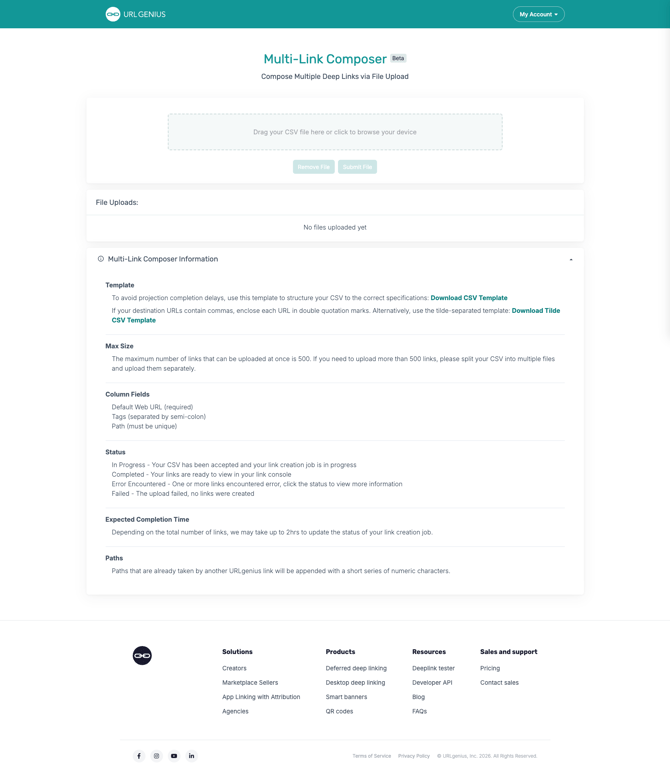
- Drag your CSV file into the upload area, or click to browse and select it from your device.
- Click Submit File to process it. Use Remove File if you need to clear your selection and start over.
- Once submitted, your file will appear under File Uploads, where you can track its status.
Multi-Link Composer Information
Before uploading, it helps to know a few key details about how the Composer works:
Template To avoid delays, use the official template to structure your CSV correctly: Download CSV Template. If your destination URLs contain commas, enclose each URL in double quotation marks — or use the tilde-separated template instead: Download Tilde CSV Template.
Max Size You can upload up to 500 links at once. If you need more than that, split your CSV into multiple files and upload them separately.
Column Fields
- Default Web URL (required)
- Tags (separated by semi-colon)
- Path (must be unique)
Example:
| Default Web URL | Tags | Path |
|---|---|---|
| example.com/1 | tag1 | my-example-path-24578343216 |
| example.com/2 | tag1;tag2 | my-example-path-04803495234 |
| example.com/3 | tag1; tag2; tag3 | my-example-path-04869649523 |
| example.com/4 | (optional — can be left blank) | my-example-path-26869069523 |
If any of your destination URLs contain commas, use the Tilde CSV Template instead — it separates the three fields with a ~ character rather than commas, which avoids conflicts when a URL itself contains one.
Status Once submitted, your file will show one of the following statuses:
- In Progress — your CSV has been accepted and your link creation job is running.
- Completed — your links are ready to view in your Link Console.
- Error Encountered — one or more links hit an error; click the status to view more details.
- Failed — the upload failed and no links were created.
Expected Completion Time Depending on the total number of links, it may take up to 2 hours to update the status of your link creation job.
Paths If a path is already taken by another URLgenius link, it will automatically be appended with a short series of numeric characters.
Related: if your upload fails, see "Why Did My Multi-Link Composer Upload Fail?" for common causes and fixes.