
The Link Console is where you go to find, review, and manage every link in your account. Here's how to get there and what each part of the page does.
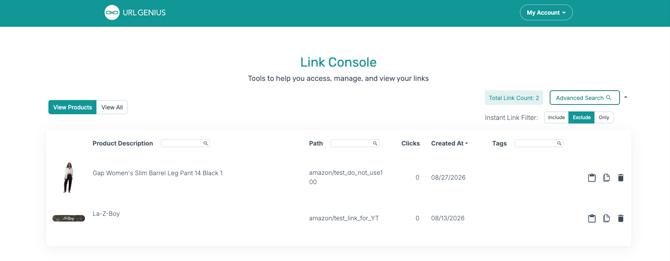
To get there: hover over My Account in the top right, then select Console from the dropdown menu.
View Products vs. View All
At the top of the page, two tabs control what kind of links you're looking at:
- View Products — shows links tied to specific products (for example, Amazon or retail product links), each with a product photo and description.
- View All — shows every link in your account, regardless of type.
- Total Link Count (top right) shows how many links currently exist in your account.
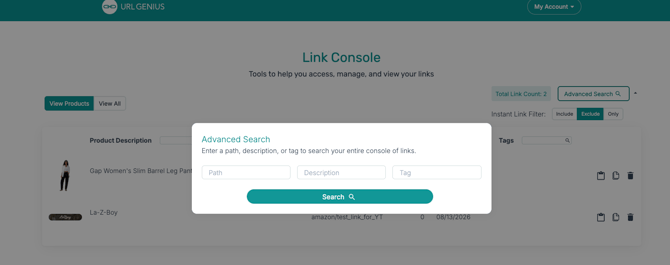
- Advanced Search opens a search window with three fields — Path, Description, and Tag — letting you search your entire console of links using whichever detail you remember. Fill in one or more fields and click Search to filter results.
Instant Link Filter
Next to Advanced Search, the Instant Link Filter gives you three quick options — Include, Exclude, and Only — for narrowing down your results on the fly as you search.

Each row represents one link, with a few ways to find what you're looking for:
- Product Description — the name/description of the linked product. Use the search box in this column header to filter by name.
- Path — the specific URL path for that link (e.g.,
amazon/test_link_for_YT). Also searchable. - Clicks — how many times that link has been clicked.
- Created At — the date the link was created. Click the column header to sort by newest or oldest.
- Tags — any tags applied to the link, if you use tags to organize your links. Also searchable.
Managing an individual link
On the right side of each row, three icons let you take action on that specific link:
- Clipboard icon — Copy Link. Copies the link to your clipboard so you can paste it wherever you need it.
- Folded-corner page icon — Clone Link. Creates a duplicate of that link, useful if you're creating a similar link and don't want to start from scratch.
- Trash can icon — Delete Link. Removes the link permanently. A confirmation pop-up will ask you to confirm before the link is actually deleted, so there's no risk of deleting something by accident with a single click.